
Before you start
Two things to know before you upload anything:
Imports cannot be undone. There’s no rollback. Whatever lands in your CRM stays there until you fix it by hand.
Duplicate detection is a best effort, not a guarantee. Exterio scores potential duplicates using a weighted comparison of name, email, and phone. On large batches, it doesn’t compare every record against your entire database — so some duplicates will get through.
Together, those two facts are the argument for the single most important step in this article: test with a small file first.
When would I use this?
- Moving from another CRM to Exterio
- Loading a list of past customers for a reroof or referral campaign
- Adding a purchased or generated lead list
- Bringing in contacts someone has been tracking in a spreadsheet
Where is the import tool?
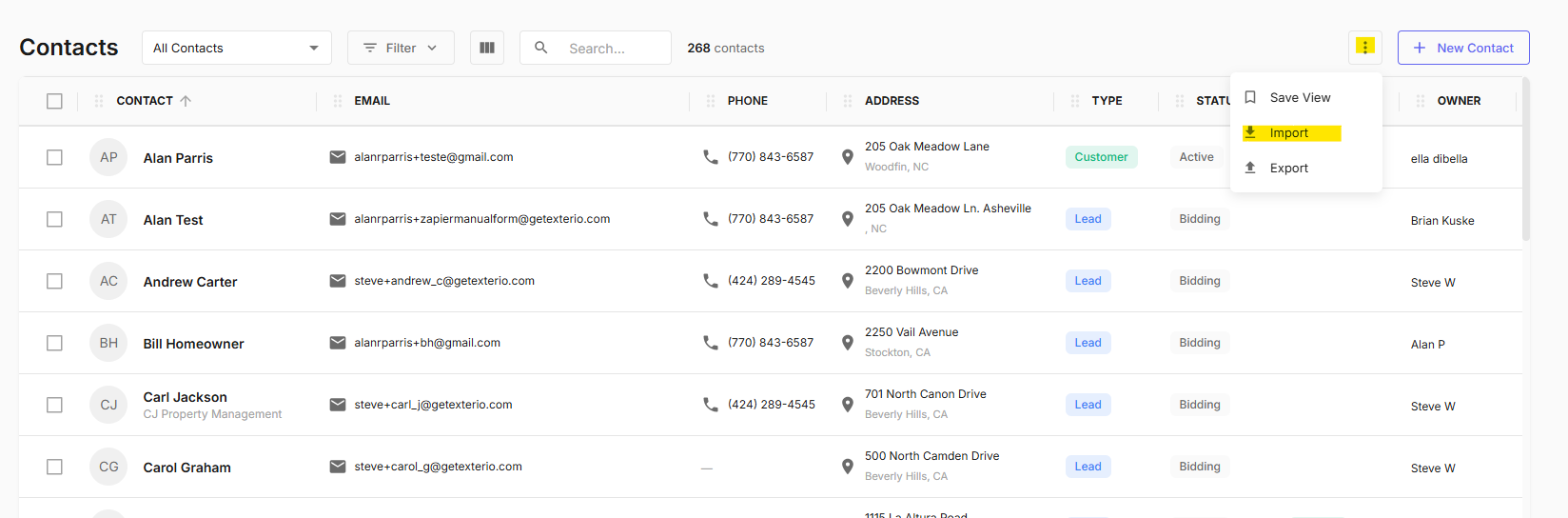
- Go to Contacts.
- Click the three-dot menu in the top right, next to New Contact.
- Click Import.
The Import Contacts window opens.
Do I need to format my file a specific way?
It is heavily recommended to map your data in the Exterio Contact Import Template mentioned below, however if you have not done that, Exterio’s AI can assist in mapping your columns to the right fields. You’ll review and adjust the mapping before anything imports.
If you’d rather start from a correctly formatted file, click Download CSV Template inside the Import Contacts window.
Limit: 10,000 rows per import. Larger lists need to be split into multiple files.
What columns should my file include?
Required:
- First Name
- Last Name
Recommended:
| Column | Why it matters |
|---|---|
| Required for email campaigns | |
| Phone | Required for calling and texting |
| Address, City, State, ZIP | Needed for project addresses and territory filtering |
| Contact Type | What the person is to your business |
| Contact Source | Where the lead came from — drives your marketing reporting |
Only first and last name are required, but a contact with no email or phone can’t be communicated with, and a contact with no type or source is hard to find later.
Including email and phone also improves duplicate detection, since both feed the matching score.
What are the steps of the import?
The Import Contacts window walks through five stages:
| Step | What happens |
|---|---|
| 1. Upload CSV | Drag and drop your file, or click to select it |
| 2. Map Columns | Review and adjust how your columns match Exterio fields |
| 3. Configure Fields | Set up field handling, including custom fields |
| 4. Review Data | See how many contacts will import, check duplicates, review errors |
| 5. Import Results | Confirmation of what was imported |
How do I map my columns?
At the Map Columns step, the AI has already proposed a mapping. Your job is to check it:
- Confirm each column points to the Exterio field you intended
- Change any field that was matched incorrectly
- Skip columns you don’t want to import
Review this step carefully even when the mapping looks right. It’s the difference between a clean database and hours of correction you can’t undo.
Can I import custom fields?
Yes, two ways:
- Map to existing custom contact fields already configured in your account
- Create new custom contact fields during the import
Creating fields on import is convenient and easy to do by accident. An unmapped column turned into a new field gives you a permanent field nobody meant to create — check this before continuing.
How does Exterio handle duplicates?
Potential duplicates are identified using a weighted score across name, email, and phone. You choose how matches are treated:
| Option | What happens |
|---|---|
| Skip | Duplicates aren’t imported — your existing records stay as they are |
| Update | Existing data is overwritten with what’s in your file |
| Create New | The duplicate is imported as a separate new contact |
On large batches, matching is incomplete. With many thousands of records, the comparison doesn’t run against your full dataset, so expect some duplicates to slip through. Smaller batches produce better matching.
What should I do after importing?
- Review the imported contacts
- Check for data quality issues
- Search for likely duplicates that detection may have missed
- Add contacts to the appropriate lists or campaigns
Tips and gotchas
-
Test with twenty rows before you import two thousand. Because there’s no undo, the test import is your only safety net. Export a small sample, run it, open a few contacts, and confirm the data landed where you expected. Then run the real file.
-
Don’t trust the AI mapping without checking it. Automatic mapping removes the tedium, not the responsibility. It’s very good at obvious columns and less certain about ambiguous ones — a column named “Type” could be contact type, property type, or roof type. Thirty seconds on the Map Columns step prevents a permanent mess.
-
Split large lists into smaller batches. The 10,000-row limit is the hard cap, but smaller batches are better practice regardless — duplicate matching works better, and if something goes wrong you’re cleaning up hundreds of records instead of thousands.
-
Choose Update carefully — it overwrites. If your spreadsheet is older than what’s in Exterio, Update replaces good data with stale data, and you can’t undo it. When in doubt, choose Skip and reconcile the handful of conflicts by hand.
-
Create New is almost never what you want. It gives you two records for the same person with their history split between them. Use it only when you know the match is a false positive — two different people who share a name.
-
Clean the file before you upload it, not after. Inconsistent state abbreviations, phone numbers in five formats, names in one column instead of two — all of it is faster to fix in a spreadsheet than across hundreds of contact records with no undo available.
-
Include email and phone wherever you have them. Beyond being necessary to contact anyone, they’re what makes duplicate detection work. A file with names only gives the matcher almost nothing to work with.
-
Imported contacts have no consent. A spreadsheet doesn’t carry SMS or email opt-in. Before you add imported contacts to a campaign, make sure you have the consent that makes it legal to message them. Importing a list is not the same as earning permission to text it. See How to Edit a Contact for where consent lives.
-
Decide your Contact Types and Sources before you import. Importing everyone as “Customer” and sorting it out later means sorting it out across your entire database. Five minutes on those columns beforehand saves hours.