
When would I use this?
- Recording what you actually paid after materials arrive
- Capturing an unplanned expense like a supply run or crew lunch
- Comparing estimated versus actual costs before closing out a job
- Getting accurate numbers into your P&L
Where is job costing?
Open the project, go to the Financials tab, and expand the Job Costing Details section. It sits below the financial summary and the invoices and payments section.
Where do my estimated expenses come from?
| Category | Source |
|---|---|
| Materials | Material orders sent or marked as sent from Exterio to a supplier |
| Labor | Labor costs on estimates marked sold |
| Standalone | Standalone costs on estimates marked sold |
The estimated amount in each section is what was calculated on the estimate, or what was sent in the material order.
How do I record actual costs?
Three ways. Use whichever fits the situation.
Option 1 — Line by line
Click the pencil icon on a line item. The actual column pre-fills with the estimated amount. Adjust it if it changed, or click Save if it didn’t.
Option 2 — One total for the category
Click Add an Item, name it something like “Total Labor,” enter the amount, and save.
Useful when the line-item detail isn’t worth reconstructing — complicated labor calculations across hip and ridge bundles, steep pitch squares, and standard squares, for example. You still see the true variance for the category without editing every line.
Option 3 — Upload a receipt
The fastest option, covered below.
How do I upload a receipt?
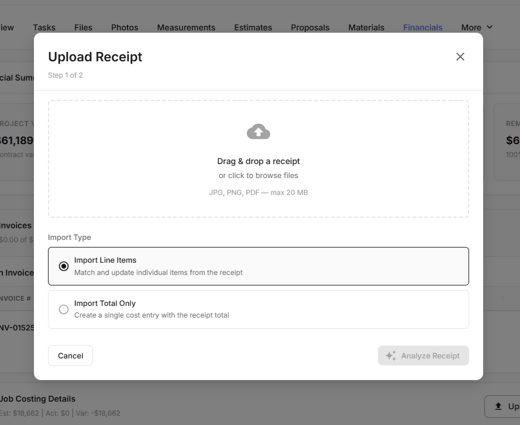
- Click Upload Receipt.
- Drag and drop the file (PDF, PNG, or JPG), or select it from your device.
- Choose how to import it:
- Line item matching — match receipt lines to your estimated costs
- Import total only — record just the total
- Click Analyze Receipt.
Exterio processes the receipt with AI and pulls out what it can read.
What does the receipt scan capture?
- Receipt number
- Transaction date
- Subtotal
- Tax amount
- Total amount
- A suggested category — material, labor, or standalone
It also matches the receipt to a likely source — an estimated supplier material order, for example — and maps individual receipt lines to your estimated line items.
How do I review the matched line items?
Before importing, check each matched line:
- Adjust quantity or price if the scan read something wrong
- Change what a line maps to if it matched incorrectly
- Add as a new item if it wasn’t in your estimate
- Confirm the material tax mapping
Then import.
What happens after a receipt is imported?
The receipt is stored with its receipt number, and you can open it, void it, or expand it for detail.
Matched items fill in the actual totals, so you can see:
- Line-item variance — what you expected to pay for shingles versus what you actually paid
- Items on the receipt that weren’t in your estimate at all
Can I upload receipts for unplanned expenses?
Yes. A supply-house run, a hardware store receipt, a meal for the crew — upload it the same way and attribute it to the project.
How do I add a cost without a receipt?
Click Add Cost, name it, enter the quantity and price, and save. The cost is attributed to the project.
Where do these costs show up?
All job costs flow into the project’s P&L Analysis section and into your aggregate reports.
Tips and gotchas
- Record actuals as they happen, not at close-out. A job costed three weeks after completion is reconstructed from memory and receipts in a glovebox. Recording as you go is the difference between job costing that’s useful and job costing that’s a guess.
- Upload the receipt rather than typing the total. The scan captures line-item detail, matches it to your estimate, and shows you where the variance actually is. A typed total tells you that you were over, not what you were over on.
- Always review the matched lines before importing. The matching is intelligent, not infallible. A misread quantity or a line mapped to the wrong product puts a wrong number in your job costing, and nothing flags it later.
- Capture the unplanned expenses — those are where margin disappears. The supply run, the extra dumpster, lunch for the crew. Individually small, collectively the difference between the margin you estimated and the margin you made.
- Use the total-only option when detail isn’t worth the time. Labor across a dozen calculated line items rarely needs reconstructing. One total gives you an accurate variance without an hour of data entry.
- Your P&L is only as good as this. Everything downstream — P&L analysis, reporting, and commissions calculated on profit — reads from these numbers. A job that was never costed shows a profit that isn’t real.
- Cost the job before you commission it. Commissions calculate from job costing at the moment they’re created and don’t recalculate. See How To Create, Track, and Approve Commissions.