
When would I use this?
- You’re inviting your team and need to decide who gets which role.
- A rep should see only the projects they’re assigned to, not the whole company’s pipeline.
- Your owner or office manager also sells and needs to be assignable as a salesperson.
- Your production manager runs jobs and needs to be assignable as the field lead on a project.
- You have a bookkeeper or a temporary hire who needs some access, but not a full Office role.
Before you start
- Only Admins can change roles. Team & Users is under Account Settings, which only Admins can see.
- The person needs to be in Exterio first. You choose a role when you invite someone and can change it any time after. See “Setup: Inviting Other Users to Your Account.”
- Decide your roles as a company before you invite everyone. It’s easier to start people with the right access than to take access away later.
- Assignments: can reassign contact owners, project details and tasks to other users.
- Export: can export customer lists and data from the system.
What roles does Exterio have?
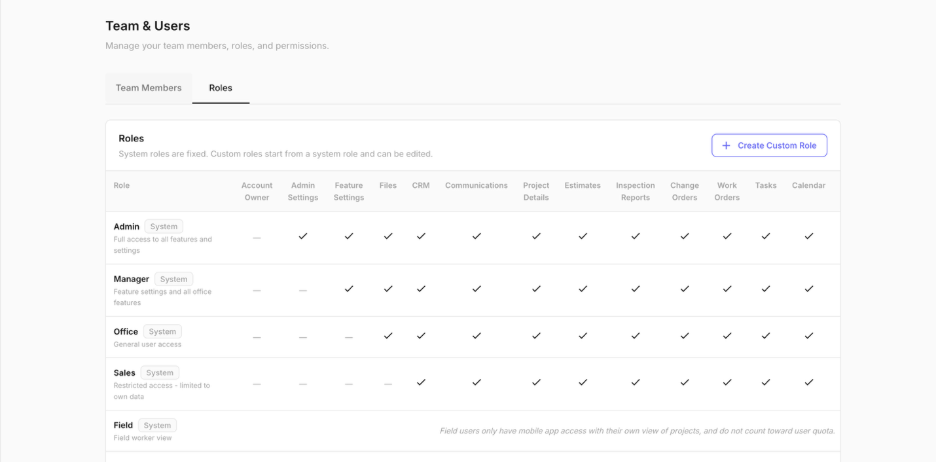
Exterio has five system roles: Admin, Manager, Office, Sales and Field. System roles are fixed and can’t be edited.
|
Role |
Description in Exterio |
Best for |
|
Admin |
Full access to all features and settings |
Owners and the people who run the account |
|
Manager |
Feature settings and all office features |
Operations or sales managers who configure how the team works, without account-level settings |
|
Office |
General user access |
Office staff, schedulers, production coordinators |
|
Sales |
Restricted access, limited to own data |
Sales reps who should only see the projects they’re assigned to |
|
Field |
Field worker view |
Crew leads and installers on the mobile app. Field users are free and never take a seat. |
Every role except Field takes a seat.
What is the Account Owner?
Each account has one Account Owner. The Account Owner has the same access as an Admin. The difference is that the Exterio team looks to the Account Owner as the final authority on the account, so if a decision about the account ever needs a final word, the Account Owner makes it.
The Account Owner is also the only person who can transfer ownership to someone else. See “How do I transfer account ownership in Exterio?” below.
What can each role do in Exterio?
The Roles tab shows exactly which privileges each role has. Here’s how the system roles compare:
|
Privilege |
Admin |
Manager |
Office |
Sales |
|
Admin Settings |
Yes |
|
|
|
|
Feature Settings |
Yes |
Yes |
|
|
|
Files |
Yes |
Yes |
Yes |
|
|
CRM |
Yes |
Yes |
Yes |
Yes |
|
Communications |
Yes |
Yes |
Yes |
Yes |
|
Project Details |
Yes |
Yes |
Yes |
Yes |
|
Estimates |
Yes |
Yes |
Yes |
Yes |
|
Inspection Reports |
Yes |
Yes |
Yes |
Yes |
|
Change Orders |
Yes |
Yes |
Yes |
Yes |
|
Work Orders |
Yes |
Yes |
Yes |
Yes |
|
Tasks |
Yes |
Yes |
Yes |
Yes |
|
Calendar |
Yes |
Yes |
Yes |
Yes |
|
Financials |
Yes |
Yes |
Yes |
Yes |
|
Reporting |
Yes |
Yes |
Yes |
Yes |
|
Assignments |
Yes |
Yes |
Yes |
|
|
Export |
Yes |
Yes |
|
|
“Own data” for the Sales role means projects: a Sales user only sees the projects they’re assigned to. Field users have mobile app access only, with their own view of projects.
Two privileges are worth knowing by name:
How do I change a user’s role in Exterio?
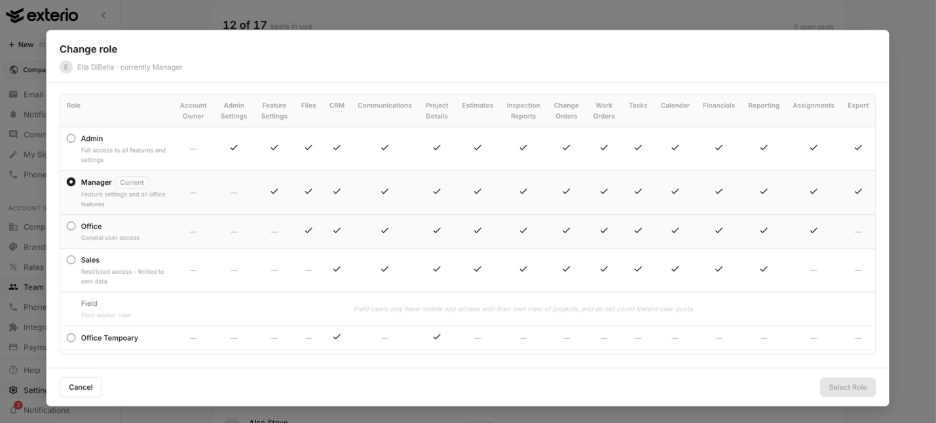
Click the pencil icon on the person’s row, click their current role, pick the new one from the table and click Select Role.
- Go to Settings > Account Settings > Team & Users.
- Click the pencil icon on the person’s row.
- Click the person’s current role. The Change role window opens with every role and its privileges side by side.
- Click the row for the new role.
- Click Select Role.
- Go to Settings > Account Settings > Team & Users.
- Click the pencil icon on the person’s row.
- In the Add-ons column, click Add. If the person already has an add-on, click it instead.
- In the Add-on Privileges window, switch Sales, Field or both on or off.
- Click Save Privileges.
- Go to Settings > Account Settings > Team & Users and click the Roles tab.
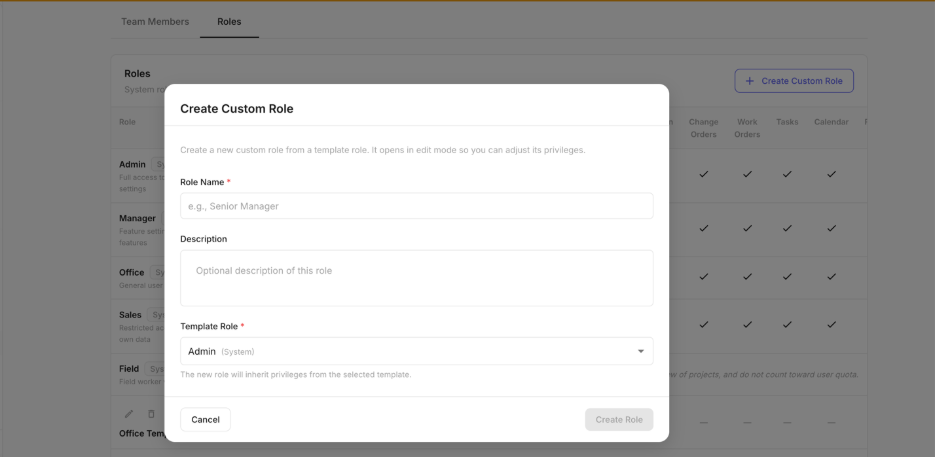
- Click Create Custom Role.
- Enter a Role Name, for example “Bookkeeper.” Add a Description if it helps your team pick the right role.
- Choose a Template Role. The new role starts with that role’s privileges.
- Click Create Role. The role opens in edit mode.
- Turn privileges on or off for the new role.
- Click Save changes.
If the new role needs a seat and you don’t have one open, Exterio tells you, with a button to add users.
What are role add-ons in Exterio?
Add-ons are extra designations you can turn on for a user on top of their role. They decide what a person can be assigned to on a project. They don’t change what the person can see or do; their role already covers that. There are two add-ons: Sales and Field.
|
Add-on |
Use it for |
|
Sales |
Someone whose main role isn’t Sales but who also sells, like an owner or office manager. With the Sales add-on, they can be assigned as the salesperson on projects. |
|
Field |
Someone whose main role isn’t Field but who’s responsible for jobs in the field, like a production manager who runs installs. With the Field add-on, they can be assigned to field work on projects as the person responsible for the project in the field. |
Add-ons are available for Admin, Manager, Office and custom roles. They aren’t available for the Sales and Field roles, which already cover that work.
How do I add a Sales or Field add-on to a user?
Click the pencil icon on the person’s row, click Add in the Add-ons column, switch on the add-ons you want and click Save Privileges.
If the Add-ons column says Not available, the person’s role can’t have add-ons.
How do I create a custom role in Exterio?
Click Create Custom Role on the Roles tab, name it, pick a system role to start from, then adjust its privileges.
Turning on Estimates, Inspection Reports, Change Orders or Work Orders also turns on Project Details, because those features live inside projects.
To change a custom role later, click Edit role. To remove it, click Delete role. Deleting a custom role can’t be undone.
How do I transfer account ownership in Exterio?
Only the Account Owner can transfer ownership. Click the pencil icon on the new owner’s row, then click the transfer ownership icon next to their role. After the transfer, your role changes to Admin. You can’t undo it yourself: only the new owner can transfer ownership back.
Since the Account Owner is the person the Exterio team treats as the final authority on the account, transfer ownership to whoever should have that final say.
Tips and gotchas
-
Give reps the Sales role, not Office. Office users see every project in the company. The Sales role limits a rep to the projects they’re assigned to. If a rep leaves for a competitor, that’s the difference between losing their deals and losing your whole pipeline.
-
Keep Admin to the people who run the account. Admin Settings covers company info, branding, team, billing and integrations. Most office staff need Office, and most managers need Manager.
-
Add the Sales add-on to anyone who sells but isn’t in the Sales role. Without it, an owner or office manager who closes deals can’t be assigned as the salesperson on a project, and your sales reporting won’t credit them.
-
Add the Field add-on to whoever is responsible for jobs in the field. If your production manager runs installs, the Field add-on lets you name them as the person responsible for the project in the field while they keep their full office access.
-
Hold Export back on purpose. Only Admins and Managers can export customer lists by default. Before you add Export to a custom role, decide who should be able to walk out the door with your customer list.
-
Start custom roles from the closest system role. Pick a template that’s already close to what you need and remove privileges, rather than starting from a small role and adding. You’re less likely to miss something a user needs to do their job.
-
Name custom roles after the job, not the person. “Bookkeeper” still makes sense when the next bookkeeper starts. “Maria’s role” doesn’t.