
When would I use this?
- You like the form on your website and don’t want to replace it with the Exterio form.
- Your website form only currently sends an email, and someone has to type each lead into Exterio by hand.
- Your form needs to match your site’s design exactly, or ask questions in a special way, like a quote calculator.
- You use a tool like Zapier for third party lead sources and want it to send leads into Exterio.
Before you start
- Only users with Feature Settings access can manage lead forms. By default, that’s Admins and Managers.
- Create an Exterio lead form unique for your website form to connect to. The Exterio form decides what each lead creates, who gets it and which questions Exterio accepts. See Setup: Create and Edit a Lead Form.
- You’ll need a web developer. Connecting a form with the API can get complicated and requires testing. Exterio gives you everything to send them.
If you’d rather not involve a developer, you can put an Exterio lead form on your website instead. See “Setup: Connecting an Exterio Lead Form to Your Website.”
How does the API connection work?
Your website form stays on your website. When a visitor submits it, your website sends their answers to Exterio, and Exterio adds the lead to your account.
Each website form connects to one Exterio lead form, using that form’s unique Publishable API Key. The Exterio lead form’s settings decide what happens to every lead it receives:
|
Exterio lead form setting |
What it decides |
|
What This Form Creates |
Whether each lead becomes a contact only, or a contact and a project |
|
Form Fields |
Which answers Exterio accepts. An answer to a field that isn’t on the Exterio form is ignored |
|
Contact Owner and Salesperson (hidden fields) |
Who gets the lead |
|
When a Known Contact Submits Again |
What happens when someone who’s already a contact submits again |
|
Lead Attribution |
Which ad or campaign gets credit for the lead |
Leads from the API run your automations, lead assignment rules and campaigns, the same as any other lead.
How do I set up the connection?
Open the Exterio lead form, add your website’s domain, and send your developer the documentation and your API key.
- Go to Settings > Feature Settings > Lead Form, and click the form your website form will connect to.
- Make sure the form is set to Published at the top of the page.
- Under Form Fields, add every question your website form asks, so Exterio accepts those answers.
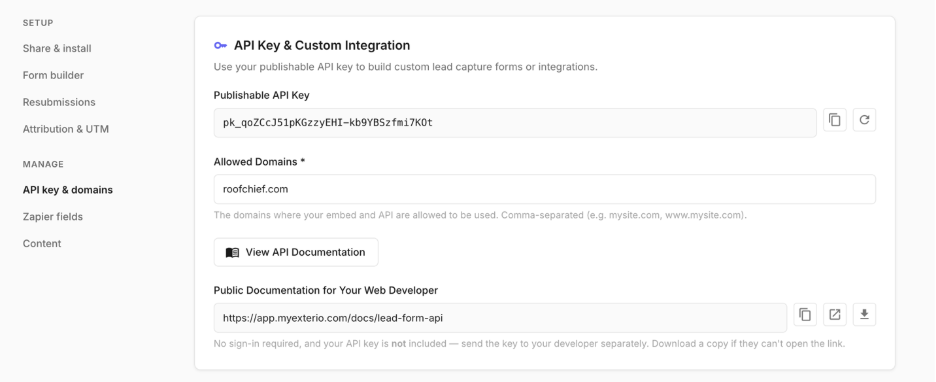
- Scroll to API Key & Custom Integration.
- In Allowed Domains, enter your website’s domain, like mysite.com. To list more than one, separate them with commas, like mysite.com, www.mysite.com.
- Copy the link under Public Documentation for Your Web Developer and send it to your developer. They can open it without signing in to Exterio. If they can’t open the link, download a copy and send them the file.
- Copy the Publishable API Key and send it to your developer in a separate message.
- When your developer is done, submit a test lead from your website and check that it shows up in Exterio.
- Submit a test lead on your website, using an email address that isn’t already a contact.
- In Exterio, open the lead form and click View submissions.
- Open your test submission and check that every answer came through.
- Check that the contact (and project, if your form creates one) shows up, assigned to the right person.
What is the API key?
The Publishable API Key tells Exterio which lead form, and which account, a lead belongs to. Each lead form has its own key.
It’s called “publishable” because it can be seen in your website’s code. It can only send new leads into the form it belongs to. It can’t read or change anything else in your account.
Even so, send it to your developer privately, and keep Allowed Domains filled in so the key only works from your website.
What should I tell my web developer?
Send them the documentation link and the API key. The documentation covers everything they need, with examples. Here’s what’s in it, in case they ask:
|
Topic |
What it covers |
|
Form settings |
How to read your form’s questions, answer choices, logo and colors, so their form matches what Exterio expects |
|
Sending a lead |
Which details to send, like name, email, phone, address and your custom questions |
|
Consent |
How to record whether the visitor agreed to email and text messages |
|
Attribution |
How to send the ad or campaign details the visitor arrived with |
|
Limits and errors |
How many leads can be sent per hour, and what each error means |
A lead needs a first name and a last name. Everything else is up to your form.
Can I connect Zapier or another tool instead of my website?
Yes. Tools like Zapier can send leads to Exterio with the same API key. The documentation includes a version built for tools like Zapier’s Webhooks step, so whoever builds the Zap can map each field without extra steps.
How do I record consent to email and text messages?
Your website form needs its own consent checkbox and wording, and your developer sends the visitor’s answer to Exterio with the lead.
Exterio records two kinds of consent:
|
Consent |
What it covers |
|
Email consent |
Marketing email |
|
Text and phone consent |
Text messages and phone calls |
The Exterio lead form and embed show approved consent wording automatically. A form on your own website doesn’t, so your form needs the same kind of wording, including your company name, how often you’ll text, “Msg & data rates may apply,” STOP and HELP instructions, and links to your Privacy Policy and Terms of Service. The developer documentation lists exactly what to include.
A visitor who said no is recorded as declined, and a new submission can’t sign up someone who already opted out.
How do I see where my leads came from?
Your developer can send the ad and campaign details from the visitor’s link, like utm_source and utm_campaign, with each lead. Your UTM Source Mapping rules in the lead form then set the contact’s source automatically, the same as they do for an Exterio form.
How do I check that the connection works?
Fill out your website form like a homeowner would, then check Exterio.
If an answer is missing, open the submission. How this was read shows any details Exterio didn’t use, like an answer to a question that isn’t on the Exterio form.
Delete the test contact when you’re done, or change its status to a closed status so it stays off your team’s dashboards.
Tips and gotchas
-
Add every question to the Exterio form. If your website asks “What type of roof do you have?” but the Exterio form doesn’t have that question, Exterio ignores the answer. The lead still comes in, without that answer.
-
Keep the Exterio form Published. A form set to Draft or archived won’t take leads from your website.
-
Add every version of your domain. If your site works at both mysite.com and www.mysite.com, list both under Allowed Domains.
-
Use a separate Exterio form for each website form. If your storm damage page and your contact page should go to different people, give each its own Exterio form and API key.
-
Tell your developer when you change the form. Adding, removing or renaming questions can change what your website needs to send. Ask your developer to check the connection after you make changes.
-
Test again after website updates. A website redesign or a new contact form plugin can break the connection without anyone noticing. Send a test lead after every big change to your site.
-
Email is how Exterio spots returning visitors. Make email a field on your website form, so a returning visitor updates their contact instead of creating a new one.