
When would I use this?
- You’re setting up Exterio and want your sources to match how you market.
- You started a new campaign, like door hangers or a home show, and want to track it.
- Reps are typing sources in notes because the one they need isn’t on the list.
- You want to know whether yard signs or Google bring in more jobs.
Before you start
- Only users with Feature Settings access can change sources. By default, that’s Admins and Managers.
- Sources affect everyone. Every user picks from this list when they add or update a contact.
- Deleting a source can’t be undone. Any contacts using it have it cleared.
How do I open Contact Sources in Exterio?
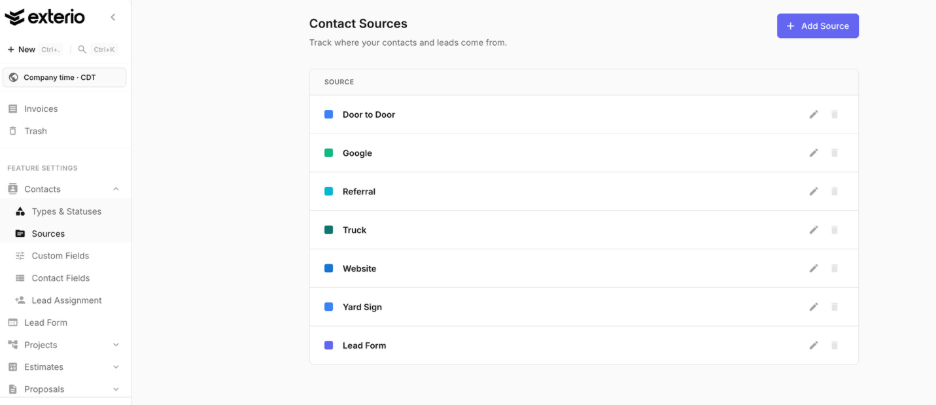
Go to Settings > Feature Settings > Contacts > Sources.
What sources come with Exterio?
The demo account starts with these sources: Door to Door, Google, Referral, Truck, Website, Yard Sign and Lead Form. You can rename, add or delete any of them.
How do I add a contact source?
Click Add Source, name it, pick a color, and click Add Source.
- Click Add Source.
- Enter a Name, like “Home Show” or “Truck wrap.”
- Add a short Description if it helps your team know when to use it, like “Spring home show booth leads.”
- Pick a Color.
- Click Add Source.
How do I edit or delete a source?
Use the edit icon to rename a source or change its description or color, then click Save Changes. Use the delete icon to remove a source, then confirm.
When you delete a source, any contacts currently using it have it cleared. This can’t be undone.
Tips and gotchas
-
Rename instead of deleting. Deleting a source clears it from every contact that has it, and that history is gone. If a source is outdated, rename it, like “Yard Sign (old)”, so past contacts keep their source.
-
Make sources specific enough to act on. “Internet” doesn’t tell you whether to spend more on Google or Angi. “Google,” “Angi” and “Facebook” do. Name sources after the places you actually spend money.
-
Don’t make sources too specific, either. A source for every street or every single referrer splits your numbers so thin they stop meaning anything. Track the channel (“Referral”) as the source, and put the referrer’s name in the contact’s notes. This is also applicable for further details like campaign or ad ID in digital adds. Best to store those as separate fields.
-
Get reps to fill in the source every time. A contact with no source is a lead you can’t credit to anything. Ask “How did you hear about us?” on the first call, and make the source part of how your team adds a contact.
-
Decide your list as a company before you import. If you’re bringing in contacts from another system, line up your old source names with your Exterio list first, so imported contacts land on the right source.