
When would I use this?
- You’re setting up Exterio and want the types and statuses to match how your company talks about contacts.
- You work with insurance adjusters, builders or HOAs and want a type for them.
- You want every new contact to start as a Lead with the status New.
Before you start
- Only users with Feature Settings access can change these. By default, that’s Owners, Admins, and Managers.
- Types and statuses affect everyone. Every user picks from this list when they add or update a contact.
- Deleting can’t be undone. Deleting a type clears it from every contact that uses it and deletes its statuses. Decide your list before your team starts adding contacts, or before you import.
How do I open Contact Types & Statuses in Exterio?
Go to Settings > Feature Settings > Contacts > Types & Statuses.
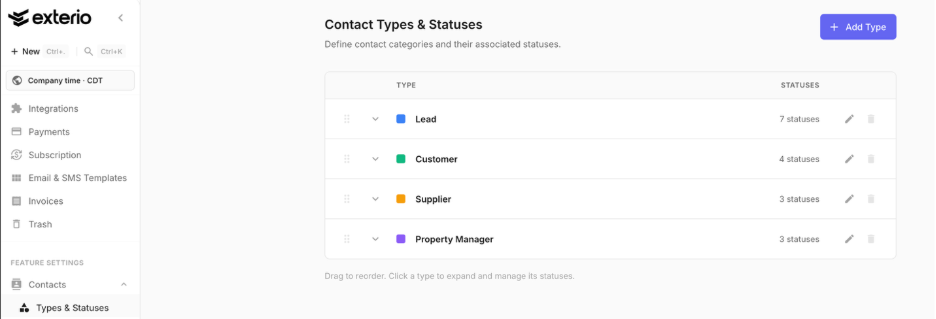
What contact types and statuses come with Exterio?
The demo account has four types. Click a type to see its statuses.
|
Type |
Statuses |
|
Lead |
New (default), Contacted, Interested, Bidding, No Response, Not Interested (closed), Do Not Contact (closed) |
|
Customer |
Active, Prior, VIP/High Value, Do Not Contact (closed) |
|
Supplier |
Active, Inactive, Preferred |
|
Property Manager |
Active, Former, Do Not Contact (closed) |
You can rename, reorder, add or delete any of these.
How do I add a contact type?
Click Add Type, name it, pick a color, and click Add Type.
- Click Add Type.
- Enter a Name, like “Adjuster” or “Builder.”
- Add a short Description if it helps your team know when to use it.
- Pick a Color. The color helps you tell types apart at a glance.
- Click Add Type.
- Click the type to expand it. The list shows Statuses for that type.
- Click Add Status.
- Enter a Name, like “Inspection Scheduled.”
- Choose the settings that apply:
- Click Add Status.
To change a type later, use its edit icon, make your changes, and click Save Changes.
How do I add a status to a type?
Click the type to expand it, click Add Status, name the status, and choose whether it’s closed or the default.
|
Setting |
What it does |
|
Closed Status |
Contacts with this status won’t appear in the My Leads dashboard |
|
Default Status |
Pre-selects this type and status when anyone creates a new contact |
Closed statuses show a CLOSED label, and the default shows DEFAULT.
How do I reorder types and statuses?
Drag them into the order you want. Types and statuses show in this order wherever your team picks them, so put the ones used most at the top.
How do I delete a type or status?
Use its delete icon, then confirm. This can’t be undone.
|
What you delete |
What happens |
|
A type |
Any contacts set to that type have it cleared, and every status under the type is deleted too |
|
A status |
The status is deleted |
Tips and gotchas
-
Mark dead-end statuses as Closed. If “Not Interested” or “Do Not Contact” isn’t closed, those contacts stay on reps’ My Leads dashboards forever. This is the most common reason a rep says their dashboard is “full of junk.”
-
Set the default to the status most new contacts start in. Usually that’s Lead > New. Without a default, reps have to pick a type and status on every new contact, and some won’t.
-
Don’t delete a type you’ve already used. Deleting a type clears it from every contact that has it, and deletes all its statuses. If you want to retire a type, rename it or stop using it instead.
-
Keep the status list short. Five to seven statuses per type is plenty. If reps have to scroll through fifteen options, they’ll pick whichever is closest and your reporting stops meaning anything.
-
Use the project pipeline for job progress. Contact statuses describe the relationship with the person, like New, Interested or Prior. The job’s progress, like Inspection, Proposal Sent or Installed, belongs in project stages.