
When would I use this?
- You’re setting up a new Exterio account and want your customers to see your brand, not a generic look.
- Your company has a new logo or brand colors.
- Only Admins can open this page. Users without Admin access don’t see Account Settings in the settings menu.
- Have your logo files ready. You need a regular version and a light version for dark backgrounds. PNG or SVG files with a transparent background work best.
- Proposals use a separate logo. The logo on proposals comes from the Branding component in your proposal template, not from this page. See “How do I change the logo on my proposals?” below.
Before you start
How do I open Branding in Exterio?
Go to Settings > Account Settings > Branding.
Where does my Exterio branding show up?
Your account branding appears on lead forms, in the customer portal, and on documents such as Change Orders, Work Orders and Invoices. It doesn’t change the logo on proposals.
|
Where |
What’s used |
|
Customer portal |
Fonts and button style |
|
Change Orders, Work Orders, Invoices and other documents |
Account logo |
|
Proposals |
Not the account logo. Proposals use the logo uploaded to the Branding component in the proposal template. |
How do I upload my logos in Exterio?
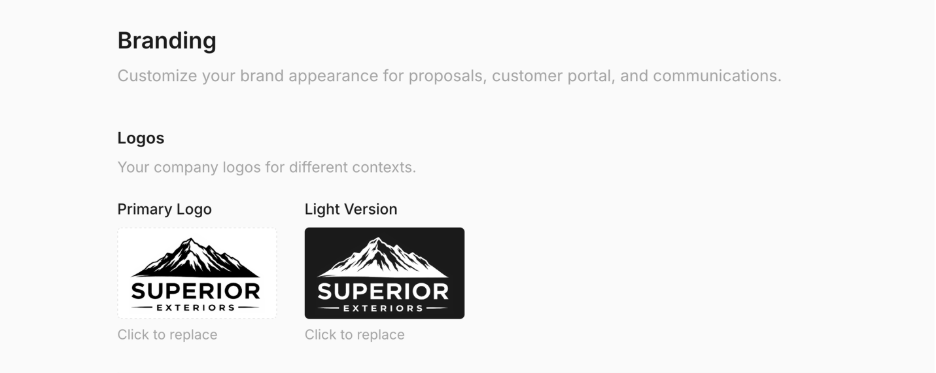
Click the logo box and choose your file. Logos save as soon as the upload finishes, so you don’t need to click Save Changes for them.
- Under Logos, click the Primary Logo box.
- Choose your logo file. The box hint says PNG or SVG, max 2MB.
- Click the Light Version box and choose the version of your logo made for dark backgrounds.
- To replace either logo later, click it and choose a new file.
The Light Version box has a dark background, so you can check that your light logo is easy to read before your customers see it.
How do I set my brand colors in Exterio?
Click a color square to pick a color, or type a hex code into the box next to it. Then click Save Changes.
|
Field |
What to enter |
|
Primary |
Your main brand color, for example #003434 |
|
Secondary |
Your accent color, for example #00B4D8 |
Reset to defaults switches both colors back to Exterio’s defaults. Nothing changes until you click Save Changes.
How do I choose fonts in Exterio?
Choose a Heading Font, a Body Font and a Base Size, then click Save Changes. These fonts are used in customer-facing materials.
How do I change the logo on my proposals?
Update the logo in the Branding component of your proposal template. Changing the logo on the Branding page in Account Settings doesn’t change proposals.
Tips and gotchas
-
Update the proposal template when you change your logo. The account logo and the proposal logo are set in different places. If your logo changes, update both the Branding page and the Branding component in each proposal template.
-
Pick a primary color dark enough to read on a button. A light or pale color can make the button text hard to read.
-
Click Save Changes before you leave the page. Logos save on their own, but colors, fonts, tagline and button style don’t.