
When would I use this?
- Every lead from your website form should go straight to your sales manager.
- You want new leads shared evenly between your reps.
- Referrals should go to the rep who handles your best accounts.
- Leads sit unassigned because nobody knows whose they are.
Before you start
- Only users with Feature Settings access can manage rules. By default, that’s Admins and Managers.
- Set up your contact types, statuses and sources first. Rules use them as conditions. See “Setup: Contact Types and Statuses” and “Setup: Contact Lead Sources.”
- Make sure everyone who should get leads is an active user. Only active team members can be picked in a rule.
- Lead Form assignment rules are managed separately. Lead forms, upon submissions, are able to not only create new contacts but also projects. Auto assignments of those submissions are handled in each individual lead forms assignment rules and settings.
How do I open Lead Assignment Rules in Exterio?
Go to Settings > Feature Settings > Contacts > Lead Assignment.
How do lead assignment rules work?
When a new contact is added, Exterio checks your rules from the top of the list down, and assigns the contact using the first rule it matches.
Each rule has two parts:
|
Part |
What it does |
|
Trigger Conditions |
Which contacts the rule applies to: Contact Type, Contact Status and Source. Leave a condition blank to match any. |
|
Assignment Method |
Who gets the contact: one Specific User, or a Round Robin that takes turns across a group |
How do I create a rule?
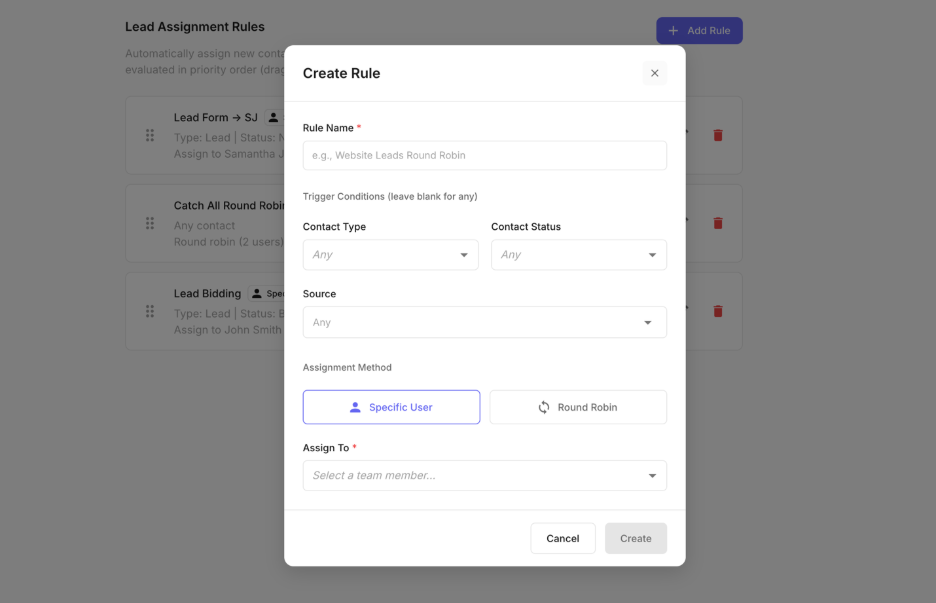
Click Add Rule, name the rule, set its conditions, choose who gets the contacts, and click Create.
- Click Add Rule (or Create First Rule if you don’t have any yet).
- Enter a Rule Name that says what the rule does, like “Website Leads Round Robin.”
- Under Trigger Conditions, choose the contacts this rule applies to:
- Contact Type, for example Lead. Leave it on Any to match every type.
- Contact Status, for example New. The list only shows statuses for the type you picked.
- Source, for example Website. You can pick more than one. Leave it blank to match any source.
- Under Assignment Method, choose Specific User or Round Robin.
- Choose who gets the contacts:
- For Specific User, pick one person in Assign To.
- For Round Robin, pick two or more people in Round Robin Pool.
- Click Create.
- Catch All Round Robin, with no conditions, so it matches any contact
- Website Leads to Mike, for Lead contacts from Website
The Create button stays grayed out until the rule has a name and at least one team member.
Should I use Specific User or Round Robin?
|
Method |
How it works |
Best for |
|
Specific User |
Every matching contact goes to the same person |
Leads that belong to one person, like insurance work for your claims specialist |
|
Round Robin |
Matching contacts take turns across the people in the pool, one at a time |
Sharing new leads evenly across a sales team |
Why does rule order matter?
Exterio uses the first rule a contact matches, so put your most specific rules at the top and your broadest rule at the bottom.
For example, say you have these two rules:
Every website lead matches rule 1 first, so rule 2 never runs. Drag Website Leads to Mike above the catch-all and it works.
How do I change the order of rules?
Drag a rule by its handle on the left to a new spot. The new order saves as soon as you drop it.
How do I see what a rule is doing?
Each rule shows a summary of what it does:
- Its conditions, like “Type: Lead | Status: New | Source: Website,” or “Any contact” if it has none
- Who gets the contacts, like “Assign to Brian Kuske” or “Round robin (3 users)”
- How many contacts it has assigned so far, like 108 assigned
- To pause a rule: turn off its switch. Turn it back on any time.
- To edit: click the edit icon, make your changes, and click Save.
- To delete: click the delete icon, then click Delete to confirm. This can’t be undone.
A rule with no “assigned” count hasn’t matched any contacts yet.
How do I turn off, edit or delete a rule?
Use the switch, edit icon or delete icon on the rule.
Tips and gotchas
-
Keep a catch-all rule at the bottom. A rule with no conditions, set to round robin across your sales team, makes sure no new lead goes unassigned. Just keep it last, or it will grab contacts meant for your other rules.
-
Check the “assigned” count after you set up a rule. If a rule you expected to be busy still has no count after a few new leads, a rule above it is probably catching those contacts first.
-
Turn a rule off instead of deleting it. If someone is on vacation, turn off their rule (or take them out of the round robin pool) and turn it back on when they’re back.
-
Update your rules when your team changes. When a rep leaves, take them out of every rule. Only active users can be picked, so a new hire won’t show up until their account is active.
-
Name rules for what they do. “Website Leads Round Robin” tells everyone what the rule is for. “Rule 2” doesn’t.