
When would I use this?
- Every project’s files end up in one long list, and nobody can find the signed contract.
- Your insurance jobs need folders your retail jobs don’t, like Claim Documents and Supplements.
- You want every job to have a Permits folder without anyone having to make it.
- You want to filter a project’s files to just invoices or just warranties.
Before you start
- Only users with Feature Settings access can manage folder templates and categories. By default, that’s Admins and Managers.
- Set up your tracks and work types first. Folder templates can be matched to them. See “Setup: Project Work Tracks” and “Setup: Project Work Types.”
- Templates apply to new projects only. Changing a template doesn’t add, rename or remove folders on projects you already have.
How do I open these settings in Exterio?
- Folder templates: go to Settings > Feature Settings > Files > Folder Templates.
- File categories: go to Settings > Feature Settings > Files > Categories.
What’s the difference between folders and categories?
|
|
Folders |
Categories |
|
What it is |
Where a file lives on a project |
A label on a file |
|
Example |
Permits, Insurance, Miscellaneous Files |
Contract, Invoice, Receipt, Warranty |
|
Set up in |
Folder Templates |
Categories |
|
Helps your team |
Browse a project’s files |
Filter files by kind |
You can use both. For example, a signed contract can sit in a “Sales Documents” folder with the category Contract.
How do folder templates work?
When a project is created, Exterio picks the template that matches its track and work type, and creates that template’s folders on the project.
|
Template |
When it’s used |
|
A template with tracks or work types chosen |
On new projects that match those tracks and work types |
|
The Default Template |
On new projects that don’t match any other template |
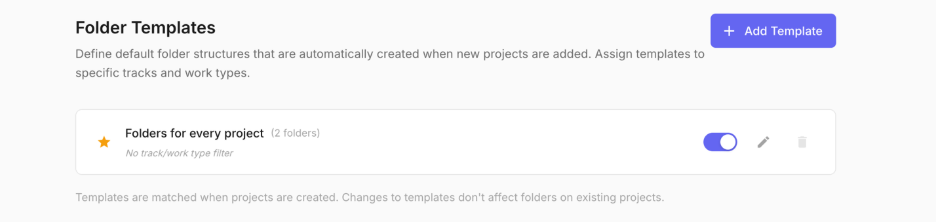
A star marks your default template on the Folder Templates page.
How do I create a folder template?
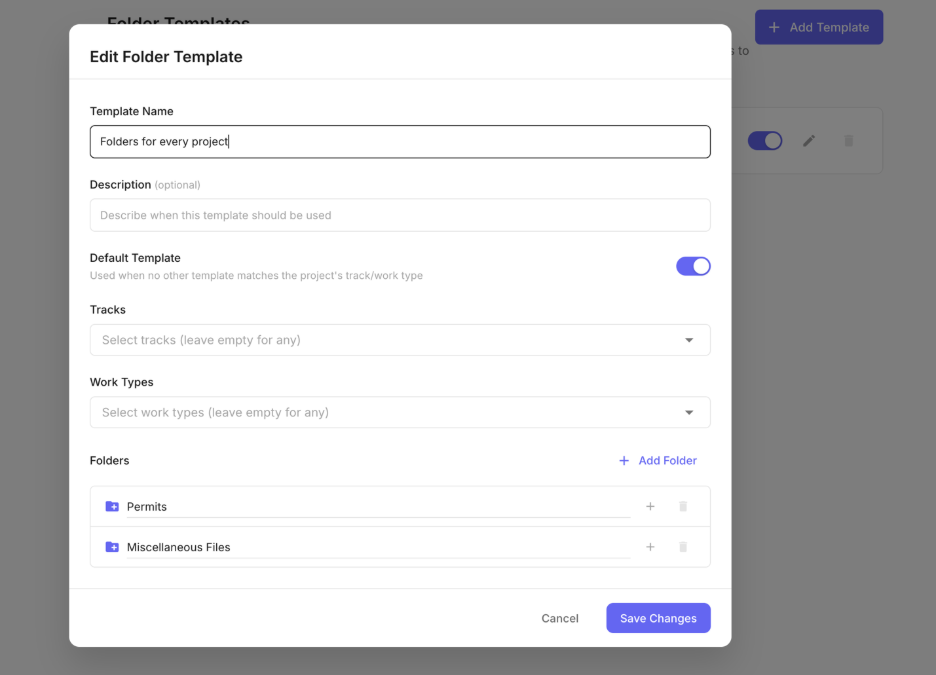
Click Add Template, name it, choose where it applies, add folders, and save.
- Click Add Template.
- Enter a Template Name, like “Insurance Projects.”
- Add a Description if it helps, like “Folders for insurance claim jobs.”
- Choose the Tracks this template is for, like Insurance. Leave it empty for any track.
- Choose the Work Types this template is for, like Roofing. Leave it empty for any work type.
- Under Folders, click Add Folder and enter a Folder name. Repeat for each folder.
- To put a folder inside another folder, click the + on the folder.
- Save the template.
To make it the template used when nothing else matches, turn on Default Template.
What folders might each template have?
|
Template |
Tracks |
Folders |
|
Every project (default) |
Any |
Contracts, Permits, Invoices, Miscellaneous Files |
|
Insurance Projects |
Insurance |
Claim Documents, Adjuster Reports, Supplements, Contracts, Permits, Invoices |
|
Repairs |
Repairs |
Before and After, Invoices |
How do I edit, turn off or delete a template?
- To edit: click the pencil on the template, make your changes, and click Save Changes.
- To turn off: turn off the template’s switch. A turned-off template isn’t used on new projects.
- To delete: click the delete icon, then confirm.
- To reorder: drag a category by its handle. Categories appear in this order in dropdowns.
- To rename: click the pencil on the category.
- To turn off: turn off the category’s switch. A turned-off category doesn’t appear when your team uploads or filters files. Files that already have it keep it.
How do I add a file category?
Go to Settings > Feature Settings > Files > Categories, click Add Category, enter a Name, and click Add Category.
Your team picks a category when they upload a file, and can filter files by category.
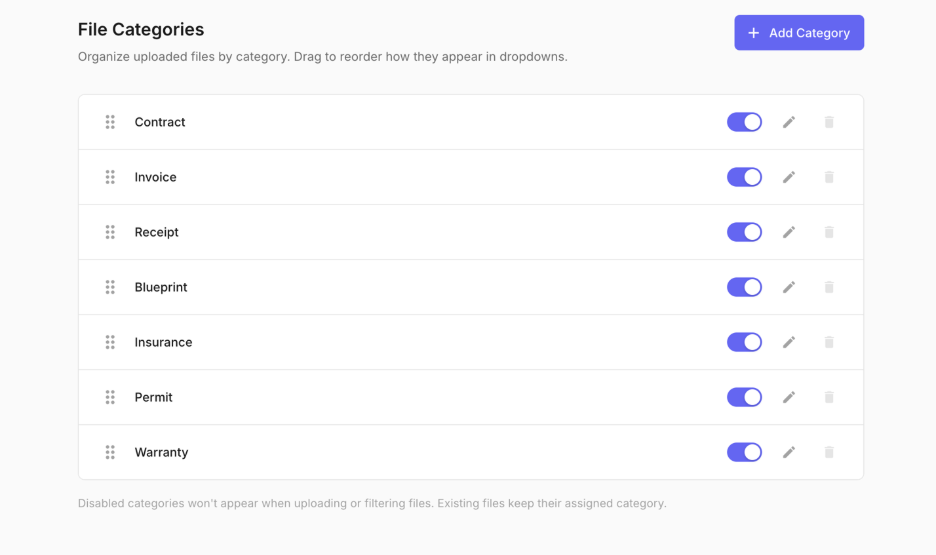
The demo account includes Contract, Invoice, Receipt, Blueprint, Insurance, Permit and Warranty.
How do I reorder, rename or turn off categories?
- To reorder: drag a category by its handle. Categories appear in this order in dropdowns.
- To rename: click the pencil on the category.
- To turn off: turn off the category’s switch. A turned-off category doesn’t appear when your team uploads or filters files. Files that already have it keep it.
Tips and gotchas
-
Start with one default template. A handful of folders on every project covers most companies. Add track-specific templates only for tracks that really need different folders, like Insurance.
-
Keep folders few and obvious. Five folders everyone understands beat fifteen nobody uses. If your team isn’t sure where a file goes, there are too many.
-
Use categories for the files you hunt for. Contracts, invoices, permits and warranties are the files people ask for months later. Give each one a category.
-
Turn off, don’t delete, categories you’ve used. Turning a category off keeps it on past files, so they’re still easy to find.