
When would I use this?
- You’re setting up Exterio and want the stages to match how your jobs really move.
- You are adding a new work track and want to set unique stages to match that workflow
- You would like to change your workflow for projects to enhance automations or visibility for the team
Before you start
- Only users with Feature Settings access can change stages and statuses. By default, that’s Admins and Managers.
- Stages and statuses are your library. The Stages & Statuses page holds every stage and status your account can use. To use a new stage or status on projects, you add it to a track. See “How do I turn on a new stage or status?” below.
- Changes affect everyone. Every user sees the same stages and statuses.
How do I open Stages & Statuses in Exterio?
Go to Settings > Feature Settings > Projects > Stages & Statuses.
Each stage shows its color, its description, the tracks that use it and how many statuses it has. Click the number of statuses to see them.
How do stages, statuses and tracks fit together?
|
Part |
What it is |
Example |
|
Stage |
A big step in the job |
Production |
|
Status |
A smaller step inside a stage |
Scheduled, Day 1, Day 2, Weather Delay, Complete |
|
Track |
The path a type of job follows, made of the stages and statuses it uses |
Retail, Insurance, Repairs |
A stage can be used in more than one track. For example, Production can be part of both your Retail and Insurance tracks.
How do I add a stage?
Click Add Stage, name it, add a description, pick a color, and save.
- Click Add Stage.
- Enter a Name, like “Permitting.”
- Add a short Description if it helps your team know what happens in this stage, like “Waiting on the city to approve the permit.”
- Pick a Stage Color.
- Save the stage.
- Add the stage to a track so your team can use it. See “How do I turn on a new stage or status?” below.
- Click the number of statuses on the stage, like 5 statuses.
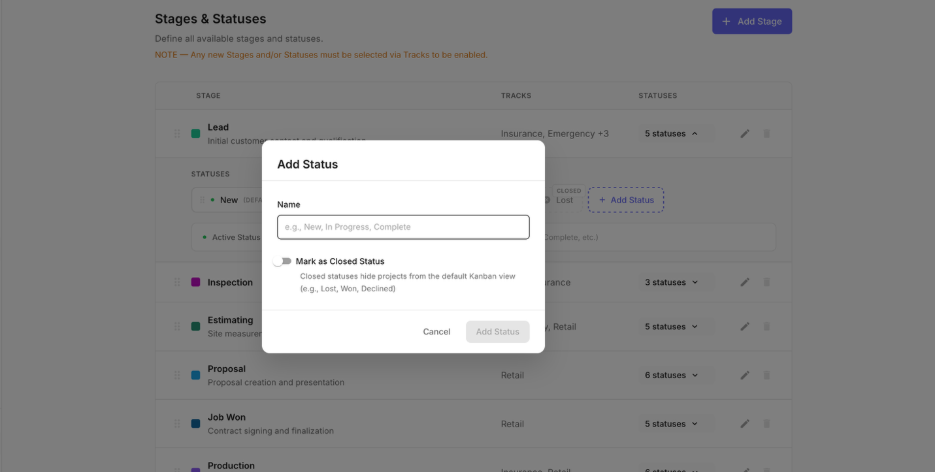
- Click Add Status.
- Enter a Name, like “Waiting on Materials.”
- Turn on Mark as Closed Status if this status means the job is finished or lost. See the next section.
- Click Add Status.
- Turn the status on in each track that should use it. See “How do I turn on a new stage or status?” below.
- Go to Settings > Feature Settings > Projects > Tracks.
- Click Configure on the track.
- To add a stage, find it under Available Stages and click Add.
- To turn on a status, click Expand on the stage and select the status.
- Click Save & Return.
To change a stage’s name, description or color later, click the pencil on the stage, make your changes, and click Save Changes.
How do I add a status to a stage?
Click the stage’s statuses to open them, click Add Status, name it, and click Add Status.
To rename a status or change whether it’s closed, click the status, make your changes, and click Save Changes.
What’s the difference between an active status and a closed status?
|
Status type |
What it means |
Examples |
|
Active |
The job is still moving forward |
New, Scheduled, In Progress |
|
Closed |
The job has reached an end point. Projects with a closed status are hidden from the default project board |
Lost, Not an Opportunity, Complete |
Closed statuses show a CLOSED label and are grayed out in the list.
How do I change the order of stages?
Drag a stage by its handle on the left to a new spot.
The order is shared across all your tracks. If Inspection comes before Estimating here, it comes before Estimating in every track that uses both. Put your stages in the order a job really moves, from first contact to close out.
How do I change the order of statuses?
Open the stage’s statuses and drag a status by its handle to a new spot. Statuses show in this order wherever your team picks them.
How do I turn on a new stage or status?
Add it to a track. New stages and statuses don’t appear on projects until they’re part of a track.
Each track also has its own default status for each stage. That’s the status a project starts in when it moves into the stage. To change it, click Set Default next to the status on the track.
How do I delete a stage or status?
- To delete a status: click the status, then click Delete.
- To delete a stage: click the delete icon on the stage. A stage that’s used in any track can’t be deleted. Remove it from those tracks first.
Tips and gotchas
-
Mark dead-end statuses as Closed. If Lost or Complete isn’t closed, those projects stay on your board forever, and it gets harder to see the jobs that need attention.
-
Keep stages big and statuses small. A stage should be a step every job of that kind goes through, like Production. The details, like Day 1 or Weather Delay, belong in statuses. Too many stages makes your project board wide and hard to read.
-
Set the order once, for every track. Because stage order is shared, arrange stages so they make sense for all your tracks. An insurance-only stage like Adjuster Meeting can sit between Inspection and Estimating, and your Retail track simply skips it.
-
Remember to add new stages and statuses to a track. This is the most common reason a new stage or status “doesn’t show up.” Check the track’s Configure page.
-
Use descriptions to set expectations. A note like “Contract signed, deposit collected” tells everyone exactly when a job belongs in Job Won.
-
Use contact statuses for the person, and project stages for the job. Contact statuses, like New or Interested, describe the relationship. Project stages describe where the work stands. See “Setup: Contact Types and Statuses.”